
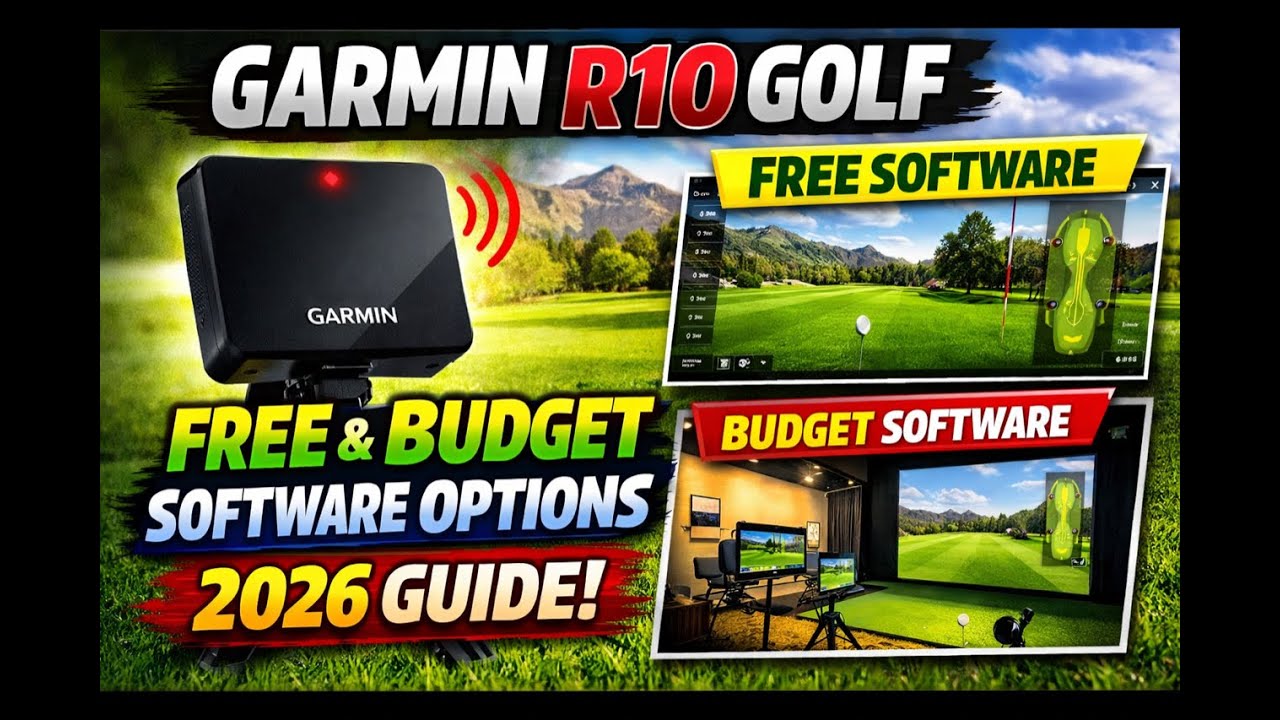
Garmin R10 Software Guide 2026 | Best Free & Budget Golf Simulator options
The garmin Approach R10 (often referred to simply as the Garmin R10) remains a popular choice for golfers seeking an affordable launch monitor that pairs with a growing ecosystem of software options. This guide dives into the 2026 software landscape,how to keep the R10 up to date,calibration tips for consistent readings,and a curated list of free and budget-friendly golf simulator options that work well with the R10. Whether you’re chasing practice at home, weekend practice in a garage, or casual simulation with friends, this article helps you optimize your setup without breaking the bank.
What is the Garmin R10 and why software matters
The Garmin Approach R10 is a compact launch monitor that captures essential swing and ball data. While hardware accuracy matters, software plays a key role in how you view metrics, how you connect to simulators, and how true-to-life your virtual rounds feel.In 2026, Garmin continues to update the firmware and the companion Garmin Golf app, expanding compatibility with third‑party simulators and improving calibration workflows. A well-maintained software stack ensures smoother pairing, better data syncing, and more realistic virtual courses.
Garmin R10 software ecosystem in 2026
Understanding where the R10 fits in helps you pick the right free or budget-friendly simulator. Core elements include:
- Garmin Golf app: The native control hub for pairing, firmware updates, practice modes, and course play using the R10. It’s free with the device and often updated to improve reliability and features.
- Firmware updates: Regular updates from Garmin fix bugs, improve calibration, and expand compatibility with external simulators.
- Third‑party simulators: The R10 can feed data into PC-based or online sims such as The Golf Club (TGC) 2019/2020, E6 Connect, GS Pro, and, where available, WGT by Topgolf. Availability and exact integration can vary by platform and region.
- Calibration and profiling: Accurate measurements depend on proper calibration. The 2026 workflow emphasizes streamlined calibration via the Garmin Golf app and,for some third‑party sims,in-app or desktop calibration utilities.
Firmware updates and setup: a practical how-to
Staying current is your first step toward reliable data. Here’s a practical checklist to ensure your Garmin R10 software remains solid in 2026:
- Update the firmware: Open the Garmin Golf app, ensure your R10 is connected, and check for firmware updates. If an update is available, install it and restart the device as prompted.
- Check app version: Make sure you’re running the latest version of the Garmin Golf app on your iOS/Android device. Updates often include improved pairing with third‑party sims and enhanced calibration routines.
- Pairing and connectivity: Confirm Bluetooth pairing is stable. If you’re using a PC-based simulator, verify whether you’ll need any additional USB dongles or software bridges to import data from the R10.
- Calibration sweep: Run the standard calibration sequence from the Garmin Golf app. Use the recommended environment (even lighting, stable surface) and perform the calibration with multiple balls if prompted.
- Test run: Do a short practice session in the Garmin Golf app to confirm data streams (ball speed, club speed, launch angle, carry, etc.) are appearing as expected before moving to a simulator.
Calibrating the garmin R10 for best accuracy
Calibration is the backbone of reliable data. In addition to the standard in-app calibration, consider these practical tips to maximize accuracy in 2026:
- Environment: Use a clear, evenly lit hitting area. Avoid strong light sources directly behind the ball,and ensure your ball lies on a stable mat or turf.
- Ball placement: Use a consistent tee height and ball position relative to your stance during calibration and practice sessions.
- Surface and netting: If you’re practicing indoors, ensure no reflective surfaces interfere with sensor readings. A neutral backstop helps mitigate misreads on mis-hits.
- Multiple sessions: Run calibration every few weeks or whenever you switch venues (home, garage, club practice area) to account for minor environmental changes.
- Firmware-driven improvements: After a firmware update, re-run the calibration to lock in any improvements in measurement accuracy.
Best Free & Budget Golf Simulator Options for Garmin R10 (2026)
Below is a curated list of options that balance cost with functionality. The focus is on options that are either free to use with the R10 or economical, making them ideal for casual golfers or beginners who want virtual practice without a big upfront investment.
Free options
- Garmin Golf App (free with R10): The built‑in app is the most straightforward choice for immediate play and practice. It provides club and ball data, basic virtual features, and reliable pairing with the R10. While it’s not a full-blown cinematic simulator, it’s excellent for practice and skill development without additional cost.
- WGT by Topgolf (free tier available): WGT is a widely used online/virtual golf platform with a free basic experience. It’s great for casual rounds and practice, and it can be a handy supplementary option for warming up before a longer simulator session. Compatibility with R10 data streams can vary,so verify current integration paths in the Garmin/Golf app or WGT support resources.
Budget-friendly paid options
- The Golf Club 2019 (TGC 2019): A highly regarded PC-based simulator known for realistic physics, customizable courses, and solid user experience. It’s available for a one-time purchase and remains a popular “budget” choice for many R10 users who want a more immersive virtual environment than free options alone.
- E6 Connect: A subscription-based platform offering high-fidelity graphics, a broad libary of courses, and regular updates. E6 Connect is a common pick for players seeking a more realistic sim experience without paying premium prices for higher-end systems. Check for promotions or bundles with hardware accessories.
- GS Pro (Professional Simulator Pro): A feature-rich option designed for use with a variety of launch monitors. It’s typically subscription-based, with regular updates and robust course libraries, making it attractive for serious hobbyists who still want budget-conscious choices compared with premium underground options.
Simulator option spotlight: features, pricing, and compatibility
To help you compare at a glance, here is a concise overview of notable options. The data reflects 2026 availability and typical pricing structures. Always verify current pricing and compatibility on the official sites before purchase.
| Simulator | Cost (approx.) | Platform | R10 compatibility | Pros | Cons |
|---|---|---|---|---|---|
| Garmin Golf App | Free (with R10) | iOS/android | Official pairing; primary control | Seamless integration, reliable data, easy setup | Limited cinematic visuals, basic virtual play |
| WGT by Topgolf | Free basic; paid features available | Web/iOS/Android | indirect; relies on external data inputs | Accessible, social play, large player base | Not a full‑fidelity simulator; some features gated behind paywall |
| The Golf Club 2019 (TGC 2019) | One-time purchase (budget-friendly) | PC | Strong with external input devices (R10 commonly used) | Realistic physics, broad course library, robust modding | Steeper setup, occasional compatibility quirks |
| E6 Connect | Subscription (monthly/annual) with trials | PC | Good integration via bridge options | High fidelity visuals, refined ball flight models | Ongoing cost, requires compatible hardware |
| GS Pro | Subscription | PC/tablet (with many launch monitors) | Strong support for multiple inputs | Excellent for practice modes and coaching tools | Learning curve; ongoing payments |
How to set up each option with the Garmin R10
guidelines vary by platform, but here are practical, high-level steps for common paths. Always consult the latest official guidance for the specific software you choose.
Using garmin Golf App with R10
- Power up the R10 and enable Bluetooth on your phone or tablet.
- Open the Garmin Golf app and pair the R10 from the devices list.
- Run a fast calibration,then select practice or Play to begin capturing data.
- When you’re ready, test a short session to confirm data flow to the on-device screen and data screen.
Using WGT by Topgolf with R10 data (indirect integration)
- Launch WGT on your preferred device and ensure a stable internet connection.
- Use the R10 in Practice or Launch mode and confirm that the data stream is accessible to your PC or phone as per WGT’s recommended setup guide.
- Pair the R10 in the Garmin Golf app or bridge software if required, then run a practice session in WGT to validate input data.
The Golf Club 2019 (TGC 2019) setup with R10
- Install TGC 2019 on your PC and download any required launch monitor plugins provided by the developer or R10 community guides.
- Connect the R10 to your PC via Bluetooth/USB as per the device’s instructions, then configure the input device in TGC 2019’s settings.
- Calibrate within TGC 2019 if the software provides a specific calibration routine for external input devices.
E6 Connect setup with R10
- Install E6 Connect on a Windows PC, sign in, and navigate to the input device section.
- Pair the R10 and ensure data streams are visible in the test HUD.
- Enter a trial mode to verify the physics feel and confirm courses load properly.
GS Pro setup with R10
- Install GS Pro and connect the R10 using the platform’s supported input protocol.
- Configure the launch monitor settings, including distance, offset, and units, to align with your environment.
- Run a short practice session to confirm data accuracy and adjust sensor calibration if needed.
Benefits and practical tips for using the Garmin R10 with software options
- Cost efficiency: The R10 paired with free or budget-friendly software options dramatically reduces the total cost of ownership for serious practice at home.
- Adaptability: A wide range of sims lets you switch between practice, casual practice rounds, and full rounds on virtual courses, depending on mood and schedule.
- Skill development: Using multiple software ecosystems helps you cross-check data (e.g., comparing Garmin’s metrics with a physics-based sim) to improve swing consistency.
- Community support: The R10 user community frequently enough shares calibration tips, user-made profiles, and course recommendations that can enhance your setup without extra purchases.
- Future-proofing: Garmin’s ongoing updates improve compatibility and introduce new metrics; staying current helps you avoid obsolescence in a growing market.
First-hand experience and practical case studies (scenarios)
Reader anecdotes and practical experiences tend to vary, but the following summarized scenarios illustrate typical outcomes when pairing the Garmin R10 with free or budget-friendly sims:
- User A – Home studio setup: Uses Garmin Golf app daily for practice. Adds WGT on weekends for lighter, casual rounds. Reports reliable data streams and a satisfying balance between cost and practice volume.
- User B – Budget convert: Upgrades to TGC 2019 for immersive rounds after a few months of testing with Garmin Golf and WGT.Notes improved course realism without a high price tag.
- User C – Coaching angle: Combines GS Pro for coaching drills with E6 Connect for more realistic visuals. Finds the multiple data views helpful for explaining swing mechanics to a friend.
Tips for maximizing your Garmin R10 setup in 2026
- Plan your space: A stable, well-lit practice area with enough room to swing safely reduces misreads and improves calibration reliability.
- Test before you buy: If you’re considering a paid simulator, use trial versions or return policies to assess how well it integrates with the R10 before committing.
- Keep firmware and apps current: Regular updates reduce compatibility hiccups as new features roll out.
- Document your baseline: Save a few data sessions in each platform to build a baseline you can reference when calibrating or upgrading equipment.
- Consider bundled deals: Some vendors offer discounts when you pair a hardware purchase with a software subscription; look for promotions or bundles that fit your budget.
Frequently asked questions (FAQ)
Is the Garmin R10 compatible with WGT or other free simulators?Yes,you can use WGT or other free options,but integration often relies on indirect data transfer and bridging solutions. Always check the latest compatibility notes from Garmin and the simulator provider to confirm how data from the R10 can be utilized in each platform.
What is the best budget setup for 2026?For a balance of cost and realism, many users pair the Garmin R10 with The Golf club 2019 for strong physics and a large course library, supplemented by Garmin’s native Garmin Golf app for daily practice. if you want more coaching features and visuals, consider a low-cost GS Pro or E6 Connect option as a supplement.
How do I calibrate the R10 properly?Calibration generally involves following the Garmin Golf app prompts, validating readings across several swings, and repeating the process after firmware updates. Use consistent lighting and a stable hitting surface,and perform calibration during the same time of day you typically practice for consistent ambient conditions.
SEO-ready pointers for your Garmin R10 article page
- Keywords naturally integrated: Garmin R10, Approach R10, garmin Golf app, free golf simulator, budget golf simulator, The Golf Club 2019, TGC 2019, WGT, E6 Connect, GS Pro, firmware updates, calibration, golf launch monitor.
- Structured headings: H1 for the main title, H2 for major sections, H3 for subsections, and bullet lists for quick scanning.This format supports better readability and crawlability for search engines.
- Internal linking opportunities: Link to official Garmin support pages, E6 Connect, TGC 2019 product pages, and WGT tutorials to bolster credibility and dwell time.
- Alt text for diagrams: If you include diagrams showing setup or calibration steps, provide alt text like “Garmin R10 calibration flow diagram” to aid accessibility and SEO.
- Load speed and mobile friendliness: Ensure the page is responsive, with clean typography and accessible contrast, so readers on mobile can easily access the guidance.
Conclusion-free closing note
with the right combination of firmware upgrades, calibration discipline, and a thoughtful mix of free and budget‑friendly simulator options, the Garmin R10 can deliver compelling practice and entertaining virtual rounds in 2026. The key is to assess what you value most—pure data fidelity, course realism, or cost control—and then pick the software path that best aligns with your goals. the ecosystem continues to evolve, so revisit this guide periodically to catch new features, updated compatibility lists, and fresh budget options.